

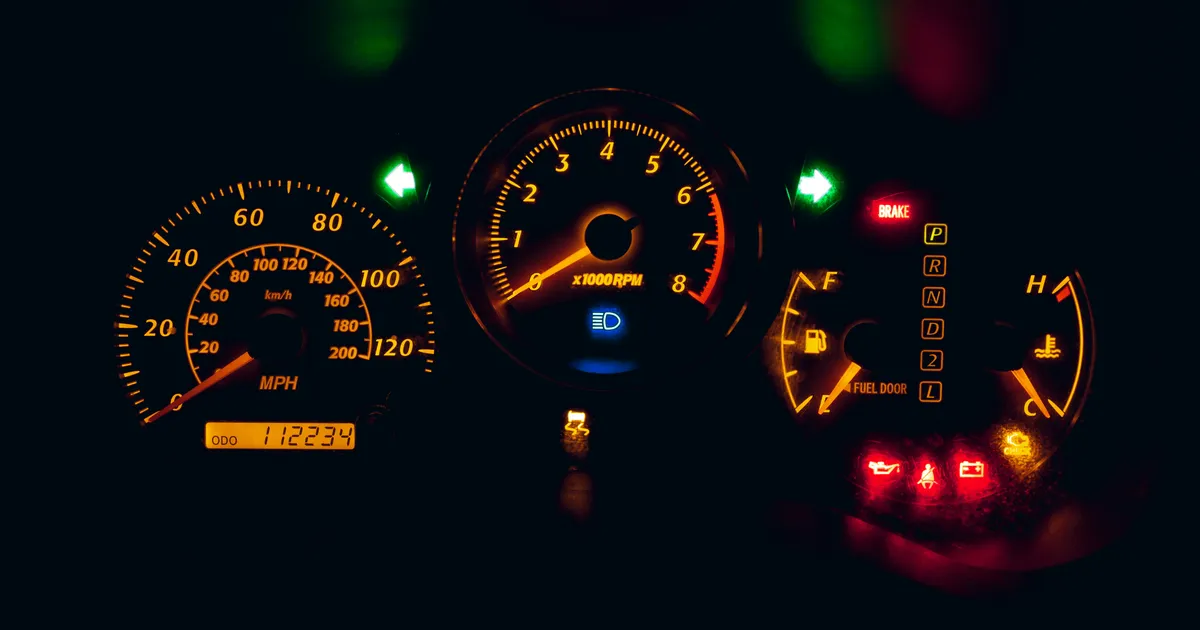
Accurate real-time sensor monitoring is paramount for effective vehicle diagnostics and performance tuning, and knowing how to calibrate wireless OBD2 scanner software is a critical skill for any automotive enthusiast or professional. Modern vehicles rely on a complex network of sensors that feed data to the engine control unit (ECU), and an OBD2 scanner acts as a window into this intricate system. However, raw sensor data isn’t always perfectly represented by generic software, necessitating careful calibration. This expert guide will delve into the nuances of optimizing your wireless OBD2 setup, ensuring you receive precise and actionable insights from your vehicle’s diagnostic port for superior monitoring in 2026 and beyond.
Understanding OBD2 Data and Calibration Needs
On-Board Diagnostics, or OBD2, is a standardized system that allows external devices to access information from a vehicle’s computer. This data stream includes vital parameters such as engine RPM, coolant temperature, oxygen sensor readings, fuel trim, and much more. While the OBD2 standard ensures a common communication protocol, the interpretation and presentation of this raw data by various scanner software applications can sometimes vary. Calibration, in this context, refers to the process of fine-tuning the software’s interpretation and display settings to accurately reflect the vehicle’s actual sensor outputs, rather than altering the vehicle’s ECU directly.
- Smart HUD: Real-Time Tire Pressure Data for Enhanced Driving Safety
- Electric Vehicle Performance & Efficiency: 2026 Analysis & Future Outlook
- Essential 2026 New Car Evaluation Criteria for Smart Buyers
- Are 3-Cylinder Turbo Engines Reliable? Long-Term Longevity and Ratings Explained
- Best Budget Hatchbacks: Value for Money Comparison Guide
The necessity for calibrating wireless OBD2 scanner software stems from several factors. Generic OBD2 PIDs (Parameter IDs) often provide a standardized range, but specific vehicle manufacturers might use proprietary PIDs or scale standard data differently. Furthermore, variations in sensor manufacturing tolerances, signal noise, or even adapter firmware can introduce minor discrepancies. For real-time monitoring, especially when diagnosing intermittent issues or optimizing performance, even small inaccuracies can lead to misinterpretations. Ensuring your software is properly calibrated helps prevent false positives or missed diagnostic cues, providing a reliable foundation for analysis.
Choosing the Right Software and Adapter
The foundation of effective real-time monitoring begins with selecting the appropriate wireless OBD2 adapter and companion software. Adapters typically connect via Bluetooth or Wi-Fi to a smartphone, tablet, or laptop. While many budget-friendly ELM327-based adapters are available, investing in a reputable brand often yields better connectivity, faster data rates, and more stable performance. Look for adapters known for their compatibility with a wide range of vehicles and robust firmware, as these factors directly impact data integrity and the potential for accurate software calibration.
The choice of software is equally crucial, as it dictates the user interface, available PIDs, data logging capabilities, and most importantly, the extent of customization and calibration options. Popular applications like Torque Pro (Android), OBD Fusion (iOS/Android), and FORScan (Ford/Mazda specific) offer extensive features, including custom PIDs, unit conversions, and gauge calibration. Professional-grade software, often paired with dedicated interfaces, provides even deeper access and more precise control over data interpretation. Always verify the software’s compatibility with your specific vehicle make and model, as some advanced features are manufacturer-dependent.
Initial Setup and Connectivity Checks
Before delving into advanced calibration techniques, a robust initial setup and thorough connectivity check are essential. Begin by plugging your wireless OBD2 adapter securely into the vehicle’s OBD2 port, usually located under the dashboard on the driver’s side. Turn the vehicle’s ignition to the “ON” position without starting the engine (KOEO – Key On, Engine Off). This provides power to the adapter and the vehicle’s ECU, allowing communication to be established.
Next, pair your wireless adapter with your smartphone, tablet, or laptop via Bluetooth or Wi-Fi, following the adapter’s specific instructions. Once connected, open your chosen OBD2 scanner software and navigate to its connection settings. Select the correct adapter type and attempt to connect to the vehicle. A successful connection will typically be indicated by a green light on the adapter, a notification within the software, or the immediate display of basic vehicle information like VIN or ECU type. If connectivity issues arise, troubleshoot by checking power to the OBD2 port, ensuring the adapter is firmly seated, restarting your device, or reviewing the software’s connection logs. A stable connection is the bedrock for accurate real-time sensor monitoring and any subsequent calibration efforts.
Sensor Data Interpretation and Baselines
Effective calibration hinges on a thorough understanding of how to interpret raw sensor data and establish reliable baselines. Before making any adjustments, observe the data streams from critical sensors like engine coolant temperature, intake air temperature, oxygen sensors, and mass airflow (MAF) sensor under various operating conditions. Compare these readings against known good values for your specific vehicle make and model, often found in service manuals or reputable online automotive resources. For instance, a fully warmed-up engine coolant temperature should typically hover around 195-215°F (90-100°C).
Establishing Baselines for Accuracy
Establishing baselines involves recording sensor data during normal vehicle operation when the vehicle is known to be running optimally. This provides a reference point for future diagnostics. Drive the vehicle through different scenarios: idle, steady-state cruising, acceleration, and deceleration. Log this data using your scanner software, noting external conditions like ambient temperature and altitude, as these can influence certain sensor readings. These recorded baselines are invaluable because they allow you to identify deviations when a problem arises, making it easier to pinpoint malfunctioning sensors or performance issues. Without a solid baseline, it’s difficult to ascertain whether a sensor reading is truly “off” or simply within its normal operating range under specific conditions.
Furthermore, understanding the interdependencies between different sensors is crucial. For example, a faulty MAF sensor can indirectly affect fuel trim readings, while a sluggish oxygen sensor might lead to incorrect air-fuel ratio adjustments. Familiarize yourself with how these sensors interact and what constitutes a healthy range for each. Many professional technicians consult resources like the SAE International standards for detailed information on sensor specifications and expected outputs. By combining empirical observation with technical documentation, you build a comprehensive picture of your vehicle’s operational parameters, setting the stage for precise calibration.
Advanced Calibration Techniques
Once you understand your vehicle’s baseline sensor data, you can apply advanced techniques to calibrate your wireless OBD2 scanner software. The primary goal here is to ensure the displayed values precisely match actual physical parameters or to correct for known offsets. Many advanced OBD2 apps allow users to create custom PIDs. This involves inputting specific formulas (often found on enthusiast forums or service manuals) that translate raw hexadecimal data from the ECU into meaningful values, sometimes for sensors not natively supported by generic OBD2 standards. These custom PIDs are particularly useful for monitoring manufacturer-specific parameters.
Another powerful calibration method involves applying scaling factors and offset adjustments. For instance, if your software consistently reads a specific sensor (e.g., fuel pressure) 5 PSI lower than a known accurate mechanical gauge, you can apply a +5 PSI offset in the software’s settings for that particular PID. Similarly, some sensors might output a voltage that needs to be converted to a specific unit (like temperature or pressure) using a linear or non-linear scaling factor. Many apps provide options to edit PID formulas, allowing you to fine-tune these conversions. This level of customization ensures that the real-time sensor monitoring data you see is as accurate as possible, reflecting the vehicle’s actual state for diagnostics and performance analysis. Always back up your software settings before making significant changes.
Troubleshooting Common Calibration Issues
Even with careful setup, you might encounter issues when attempting to calibrate wireless OBD2 scanner software. One common problem is inconsistent data readings or dropouts. This often points to an unstable wireless connection between the adapter and your device. Try repositioning your device closer to the adapter, ensuring no physical obstructions, or temporarily disabling other Bluetooth/Wi-Fi devices that might cause interference. Outdated adapter firmware or software versions can also lead to data inaccuracies; regularly check for and apply updates to both your OBD2 adapter and the scanner application, as developers frequently release patches for improved compatibility and data integrity, especially for newer vehicles appearing in 2026.
Another prevalent issue is incorrect sensor values despite apparent connectivity. This could be due to an improperly configured PID, an incorrect scaling factor, or a conflict with another software setting. Double-check your custom PID formulas against reliable sources, ensuring units and conversion factors are correct. If you’re using generic PIDs, try resetting the software’s data profiles to their default settings and then re-applying your known good adjustments one by one. Occasionally, a faulty OBD2 adapter itself can transmit corrupted data. If all software-side troubleshooting fails, test with a different adapter if possible, or consider replacing a persistently problematic unit. Persistent issues might also indicate a problem with the vehicle’s sensor itself, necessitating a different diagnostic approach beyond software calibration.
Key Takeaways
- Calibrating wireless OBD2 scanner software ensures accurate real-time sensor monitoring for diagnostics.
- Select reliable wireless OBD2 adapters and feature-rich software for optimal performance.
- Establish stable connectivity and understand baseline sensor data before attempting calibration.
- Utilize custom PIDs, scaling factors, and offset adjustments for precise data representation.
- Regularly update software and adapter firmware to enhance compatibility and data accuracy.
- Troubleshoot connectivity issues and verify PID formulas to resolve incorrect readings.
Frequently Asked Questions
What does “calibrate” mean in the context of OBD2 scanner software?
In this context, “calibrate” refers to adjusting the software’s interpretation and display settings for sensor data, rather than physically altering the vehicle’s sensors or ECU. It ensures that the values displayed by the software accurately reflect the actual readings from the vehicle’s sensors, correcting for scaling, offsets, or unit conversions to provide precise real-time sensor monitoring.
Can I really calibrate my car’s sensors with a wireless OBD2 scanner?
No, a wireless OBD2 scanner and its software do not directly calibrate your car’s physical sensors or reprogram the ECU. The “calibration” discussed here is solely within the software’s display and interpretation of the data it receives from the vehicle’s computer. Physical sensor calibration or ECU reprogramming requires specialized tools and expertise beyond a typical wireless OBD2 setup.
Why do I need to establish sensor baselines before calibration?
Establishing sensor baselines is crucial because it provides a reference point for normal vehicle operation. By knowing what “good” data looks like under various conditions, you can accurately identify deviations that indicate a problem or confirm the effectiveness of your software calibration adjustments. Without baselines, it’s difficult to judge the accuracy of displayed values or diagnose issues effectively.
What are custom PIDs and how do they relate to calibration?
Custom PIDs (Parameter IDs) are user-defined formulas that allow OBD2 scanner software to interpret proprietary or non-standard data from a vehicle’s ECU. They are essential for calibration because they enable you to monitor and display specific sensor data that might not be available through generic OBD2 PIDs, often requiring careful input of scaling factors and offsets to ensure accurate readings.
My sensor readings seem incorrect after a software update. What should I do?
If sensor readings become incorrect after a software update, first check if the update reset any of your custom PID settings, scaling factors, or unit conversions. Re-enter or verify these settings. If the issue persists, try reverting to default software settings and then re-applying your known good calibration adjustments one by one. Ensure your wireless OBD2 adapter’s firmware is also up-to-date, as compatibility issues can sometimes arise between new software versions and older firmware.
Conclusion
Mastering how to calibrate wireless OBD2 scanner software for real-time sensor monitoring is an indispensable skill for anyone serious about vehicle diagnostics and performance. By understanding the nuances of OBD2 data, carefully selecting your hardware and software, establishing solid baselines, and applying advanced calibration techniques, you can transform generic data into highly accurate and actionable insights. This meticulous approach ensures that your real-time monitoring provides a true reflection of your vehicle’s health and performance, enabling precise troubleshooting and optimization. Staying current with software updates and troubleshooting common issues will keep your diagnostic toolkit sharp and effective for the evolving automotive landscape of 2026 and beyond, empowering you with unparalleled control over your vehicle’s data.